Post #1,210 explained that when data binding causes a property accessor to fire (either get or set) and an exception occurs, the exception will be ignored by the data binding layer. The exception gets caught internally and converted into a binding error that you normally don’t see.
We can use the technique described in #1,209 to to intercept this binding error and convert it back to an exception. This avoids the problem of these original exceptions never being seen.
Below is a complete example, setting us up with a NullReferenceException that comes out of a property set accessor. We wire up a trace listener that will catch this error and other binding errors.
First, we define a BindingErrorTraceListener class, which intercepts the binding errors by overriding the WriteLine method. In the snippet below, we simply throw a new exception that contains the entire text of the binding error. This will work for all binding errors (e.g. due to binding expression problems or due to exceptions coming out of property accessors).
    public class BindingErrorTraceListener : TraceListener
    {
        public override void Write(string s) { }

        public override void WriteLine(string message)
        {
            throw new Exception(message);
        }
    }
Next, we wire up the listener in our application’s startup logic. We also set up a handler for unhandled exceptions and display the body of the exception. (You could just as easily log the exception here).
    public partial class App : Application
    {
        protected override void OnStartup(StartupEventArgs e)
        {
            base.OnStartup(e);

            PresentationTraceSources.Refresh();
            PresentationTraceSources.DataBindingSource.Switch.Level = SourceLevels.Error;
            PresentationTraceSources.DataBindingSource.Listeners.Add(new BindingErrorTraceListener());

            DispatcherUnhandledException += App_DispatcherUnhandledException;
        }

        private void App_DispatcherUnhandledException(object sender, System.Windows.Threading.DispatcherUnhandledExceptionEventArgs e)
        {
            MessageBox.Show(e.Exception.Message);
        }
    }
For existing WPF applications, this is all you need to do. All binding errors will now be converted to exceptions, caught and displayed. Some might argue that this should be standard fare for every WPF application. (Maybe not displaying the errors to the user, but at least logging them).
The snippets below are for a sample application, so that you can see this in action.
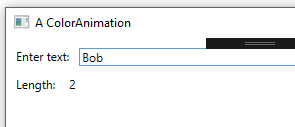
We start with a window that lets the user type in someone’s name then then displays the number of characters in the name.
<Window x:Class="WpfApp1.MainWindow" xmlns="http://schemas.microsoft.com/winfx/2006/xaml/presentation" xmlns:x="http://schemas.microsoft.com/winfx/2006/xaml" xmlns:d="http://schemas.microsoft.com/expression/blend/2008" xmlns:mc="http://schemas.openxmlformats.org/markup-compatibility/2006" xmlns:local="clr-namespace:WpfApp1" mc:Ignorable="d" Title="A ColorAnimation" Height="350" Width="525">

    <Grid Margin="10">
        <Grid.RowDefinitions>
            <RowDefinition Height="Auto"/>
            <RowDefinition/>
        </Grid.RowDefinitions>
        <Grid.ColumnDefinitions>
            <ColumnDefinition Width="Auto"/>
            <ColumnDefinition/>
        </Grid.ColumnDefinitions>

        <TextBlock Text="Enter text:"/>
        <TextBox Grid.Column="1" Margin="10,0" Text="{Binding YourTextqqqq, UpdateSourceTrigger=PropertyChanged}"/>

        <TextBlock Grid.Row="1" Margin="0,10" Text="Length:"/>
        <TextBlock Grid.Row="1" Grid.Column="1" Margin="0,10" Text="{Binding TextLength}"/>
    </Grid>
</Window>
In the code-behind, we simply wire up the DataContext of the window to a viewmodel.
    public partial class MainWindow : Window
    {
        public SomeViewModel ViewModel { get; set; }

        public MainWindow()
        {
            InitializeComponent();
            ViewModel = new SomeViewModel();
            this.DataContext = ViewModel;
        }
    }
Finally, we have the body of our viewmodel, where we make an attempt to call a method on a BobNotify object when the user types “Bob”. We haven’t initialized the object, so this will generate a null reference exception.
    public class SomeViewModel : INotifyPropertyChanged
    {
        private BobNotify _bobNotify;

        private string _yourText;
        public string YourText
        {
            get { return _yourText; }
            set
            {
                if (SetProp(ref _yourText, value))
                {
                    // E-mail Bob if someone types his name
                    // (but we forgot to initialize BobNotify object, so will get NullRefException here).
                    if (_yourText == "Bob")
                        _bobNotify.SendEmail(_yourText);

                    RaisePropertyChanged("TextLength");
                }
            }
        }

        public int TextLength
        {
            get
            {
                return string.IsNullOrWhiteSpace(_yourText) ? 0 : _yourText.Length;
            }
        }

        protected bool SetProp<T>(ref T backingField, T value, [CallerMemberName] string propName = null)
        {
            bool valueChanged = false;

            // Can't use equality operator on generic types
            if (!EqualityComparer<T>.Default.Equals(backingField, value))
            {
                backingField = value;
                RaisePropertyChanged(propName);
                valueChanged = true;
            }

            return valueChanged;
        }

        public event PropertyChangedEventHandler PropertyChanged = delegate { };

        private void RaisePropertyChanged(string propname)
        {
            PropertyChanged(this, new PropertyChangedEventArgs(propname));
        }
    }
When we put all of these pieces together and test the application, we see that when the user types “Bob”, we get the dialog popping up with the full text of the binding error. In the body of the error you can see the original NullReferenceException.
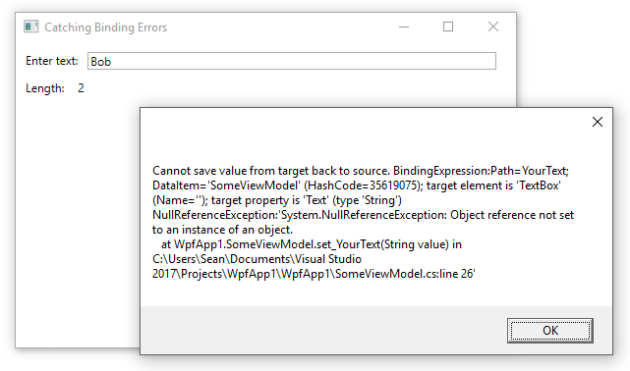
One interesting thing to note is the part saying target element is ‘TextBox’ (Name=”). The name is empty because in .xaml, we didn’t name the element. You often avoid naming XAML elements in WPF because you shouldn’t need to interact with the elements in your code-behind. However, naming elements can be useful in cases like this, where the name would normally be reported.




 2,000 Things You Should Know About WPF